Requirements
Installation is done from Pikaj. In Pikaj (1.0.28 or later), open the Pikaj Fx Studio card in the Adobe plugins section of Home (or Help ▸ Plugins…) and press Install: on a Mac, the panel, the ready-made videos and sounds, and the effects are downloaded and installed (about 1.1 GB). Premiere must be closed during installation, and the Mac asks for your administrator password once on first install. The plugin is included in the Complete Bundle subscription at no extra cost and is also open during the 15-day free trial; it can also be bought on its own with a separate subscription (pricing). You can read about the product itself on the Pikaj Fx Studio page.
- ComputerA Mac with an Apple silicon or Intel processor and a Metal-capable graphics card.
- Premiere ProPremiere Pro 2022 (22.0) or later; tested with Premiere Pro 26.2.
- PikajThe Pikaj desktop app (1.0.28 or later) installed on the same Mac, open and signed in to your account.
- SubscriptionA Complete Bundle subscription, a Pikaj Fx Studio subscription or the 15-day free trial.
- GPUIn the project settings the renderer must be Mercury Playback Engine GPU Acceleration (Metal). With GPU acceleration off, Pikaj effects do not change the picture, and transitions appear only as a soft dissolve.
- CaptionsTranscription needs whisper-cpp (via Homebrew) and a speech model (142–547 MB); both are installed from the panel on first use.
Step by step
-
Open Pikaj and sign in
Pikaj Fx Studio works with the Pikaj desktop app on this Mac. Open Pikaj and sign in to your account. The Pikaj Fx Studio card in the Adobe plugins section of Home (or Help ▸ Plugins (Photoshop, Premiere)…) opens the Plugins window, which shows whether Pikaj Fx Studio is installed and connected.
-
Install it from Pikaj
Close Premiere Pro. In the Plugins window in Pikaj, press Install next to Pikaj Fx Studio: on a Mac, the panel, the ready-made videos and sounds, and 48 effects and 44 transitions are downloaded and installed (about 1.1 GB; if the download stops halfway, Install resumes where it left off). A Mac asks for your administrator password once on first install. To remove it, use Remove in the same window.
-
Open the panel in Premiere Pro
Choose Window ▸ Extensions ▸ Pikaj Fx Studio. The panel's labels are in Turkish, so the sections below give each English name together with the label you will see on screen.
-
Connect to Pikaj
Press the Connect to Pikaj button in the panel. You do not type a code: Pikaj opens, you sign in if needed and you return to Premiere. Until the panel is connected, it shows only the connection card; once it is connected, the Library, Auto Edit, Sound and Captions tabs open.
-
Apply from the Library
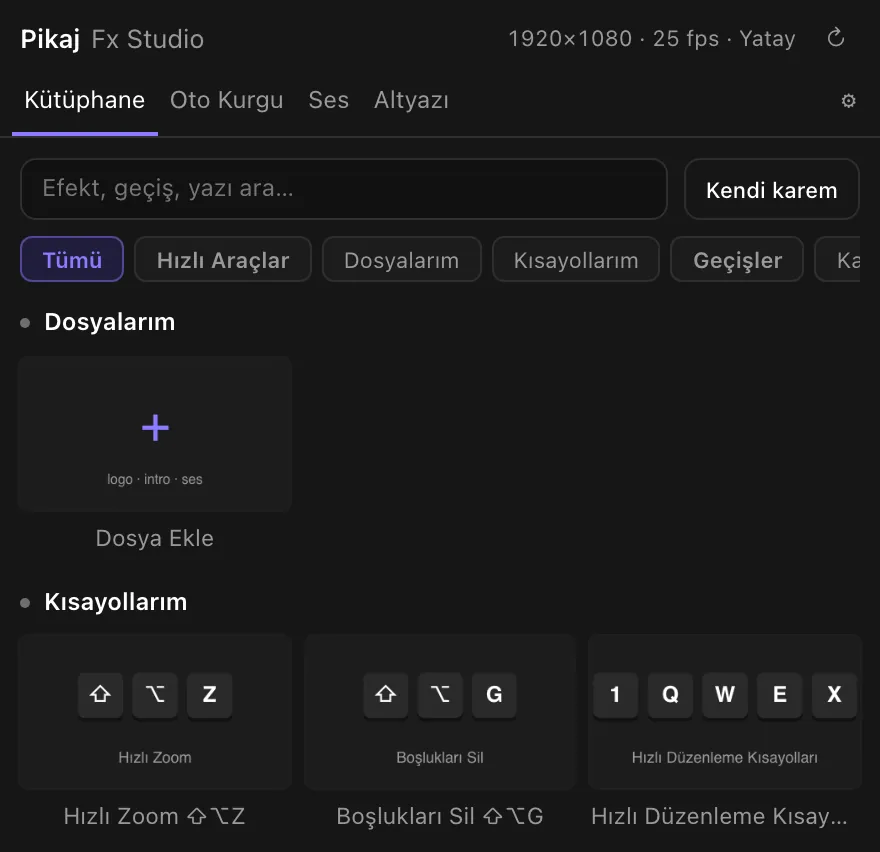
In the Library tab, transitions, effects, ready-made effects, speed curves, titles and motion tools are in one gallery. Clicking a thumbnail applies the item; the ⚙ icon or a right-click opens its settings and a large preview. The size and frame rate of the active sequence are written at the top of the panel.
-
Build a Reels with Auto Edit
In the Auto Edit tab, press Read open sequence in the Reels from Project card, choose the song and the style, then press Build Reels. The Reels is built as a new vertical sequence in the Pikaj Reels folder; your main edit is not touched.
-
Add captions
The first time, press Install whisper-cpp and Download model in the Captions tab. Select the clips and press Transcribe selected clips; correct the text in the panel, then add it to the timeline as Premiere captions or as animated captions.
-
Use the effects from the Effects panel
The 48 effects and 44 transitions are in Premiere's Effects panel, in the Pikaj Fx Studio folder under Video Effects and Video Transitions. Drag them onto a clip or a cut; you change their settings with keyframes in Effect Controls.
The panel's tabs
Library, Auto Edit, Sound, Captions and ⚙ Settings. The images are from the real panel. The panel's labels are in Turkish, so each name below is followed by the label you will see on screen.
Connecting
- Connect to Pikaj (Pikaj'a bağlan)The first thing the panel shows. Press it once; until the panel is connected, it shows only this connection card.
- Open Pikaj (Pikaj'ı aç)Starts Pikaj when it is closed or when you are signed out.
- Download Pikaj (Pikaj'ı indir)Opens the download page when Pikaj is not installed on this computer.
- Try again (Yeniden dene)Repeats the last step after you have fixed the cause.
- My account (Hesabım)Opens your account page when the plugin is not in your subscription.
Library (Kütüphane)
- SearchFinds effects, transitions and titles by name.
- GroupsQuick Tools, Transitions, Effects, Ready-made Effects, Curves, Titles and Motion (on screen: Hızlı Araçlar, Geçişler, Efektler, Hazır Efektler, Eğriler, Yazılar, Hareket). In a narrow panel the groups appear as buttons at the top.
- ApplyingClicking a thumbnail applies the item; the ⚙ icon or a right-click opens its settings and a large preview. Items labeled “Premiere” are added as Premiere's own effect, and their settings are in Effect Controls.
- My frame (Kendi karem)Redraws the thumbnails with the real frame at your playhead.
- Favorites (Favoriler)Items you mark with ★ are collected in Favorites.
- My Files (Dosyalarım)You add the files you use in every project, such as a logo, intro or jingle, once. Clicking a tile brings the file into the project, into the Pikaj Sık Kullanılanlar (“Pikaj Frequently Used”) bin; if it is already in the project, it is not added again. Bring all to project (Tümünü projeye getir) adds them all at once.
- Titles (Yazılar)Templates for names, date and place, lower thirds, monograms, covers and posters. You type the names and the date; you change the text of a title added as a Premiere graphic in the Essential Graphics panel.
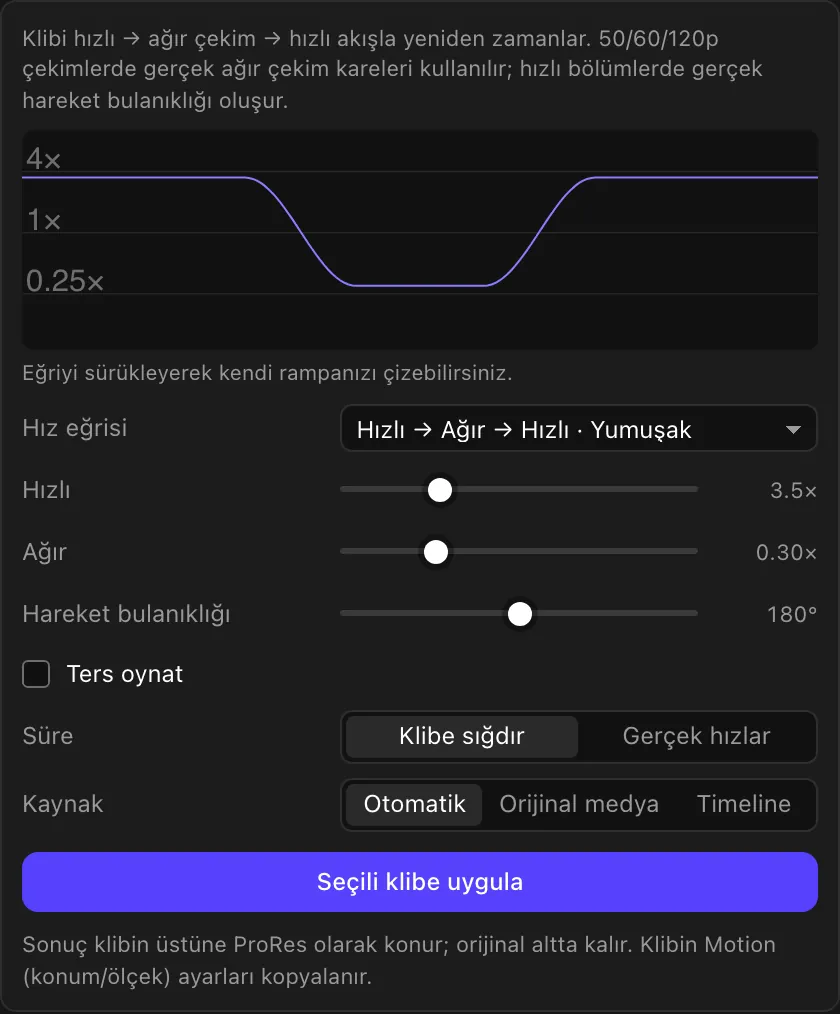
Motion: speed ramp, zoom, handheld camera (Hareket)
- Speed curve24 ready curves: Fast → Slow → Fast, Fast in → Slow, Slow → Fast out, Slow → Fast → Slow, Sudden brake and Double hit, each in Smooth, Sharp, Elastic and Linear. You draw your own ramp by dragging the curve.
- Speed and blurThe speeds of the fast and slow sections and the angle of the motion blur have separate sliders; there is also a Play in reverse option.
- Duration and sourceDuration: Fit to clip or Real speeds. Source: Auto, Original media or Timeline. On 50, 60 and 120p footage the real frames of the original media are used.
- ResultApply to selected clip (Seçili klibe uygula): the result is placed on top of the clip as ProRes, and the original stays underneath.
- Smooth Zoom (Yumuşak Zoom)A smooth zoom-in on the selected clip by a percentage.
- Handheld Camera (El Kamerası)Adds a natural handheld camera shake to a locked-off shot.
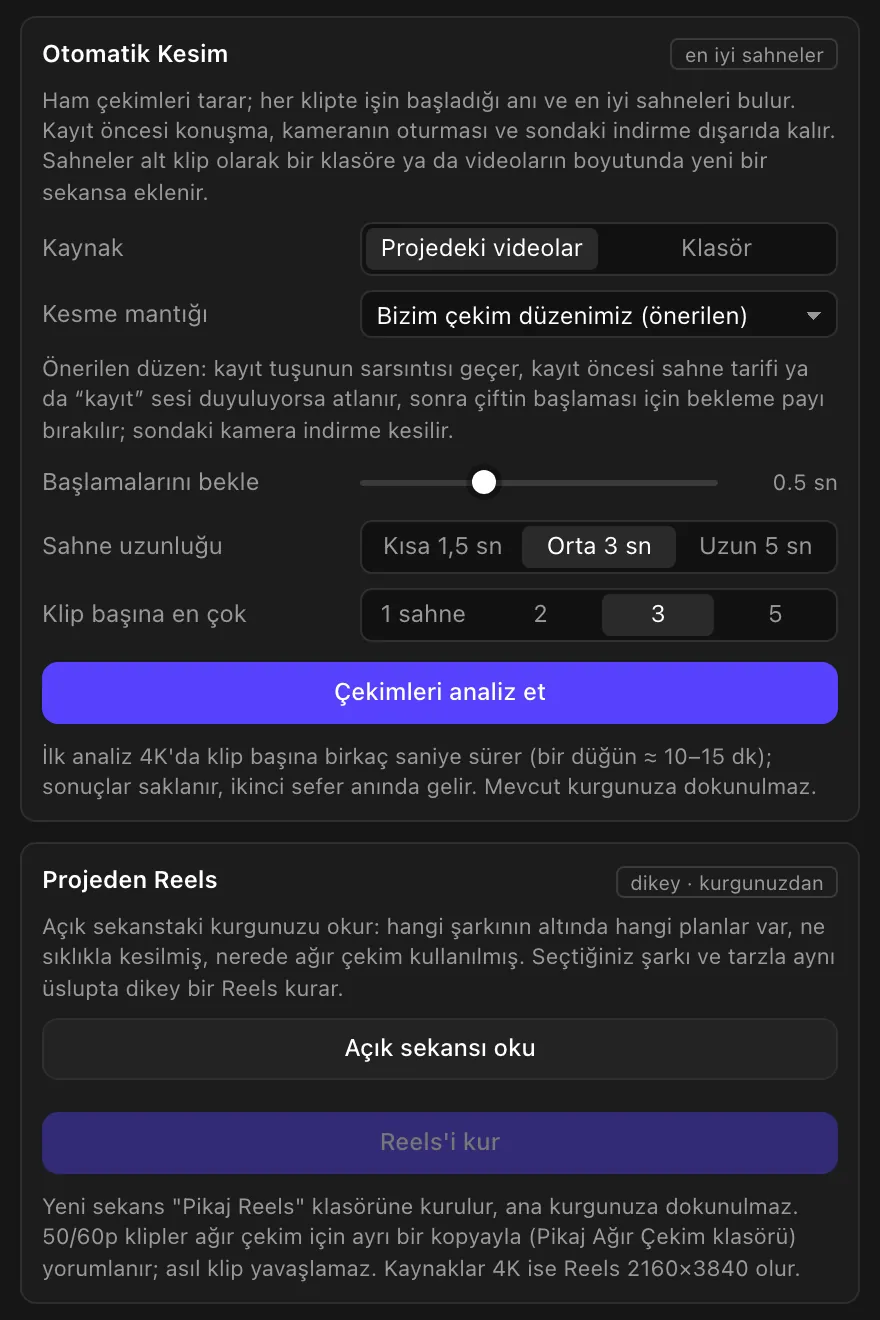
Auto Edit (Oto Kurgu)
- Automatic Cut (Otomatik Kesim)Scans raw footage; in each clip it finds the moment the action starts and the best scenes. Talk before recording, the camera settling and the wrap-up at the end are left out. The source is the videos in the project or a folder; scenes are made as subclips or arranged in a new sequence. The first analysis takes a few seconds per clip at 4K; the results are saved.
- Reels from Project (Projeden Reels)Reads the edit in your open sequence: which songs sit under which shots, how often you cut, where you used slow motion. It then builds a vertical Reels in the same style, with the song and style you choose. 50/60p clips are interpreted for slow motion with a separate copy; if the sources are 4K, the Reels is 2160×3840. The buttons are Read open sequence (Açık sekansı oku) and Build Reels (Reels'i kur).
- Beat Markers from Music (Müzikten Vuruş İşaretçileri)Select a music clip and press Analyze music (Müziği analiz et): the tempo (BPM) and beats are found, ÷2 and ×2 correct the tempo, and Add markers (İşaretçileri ekle) marks the beats on the timeline.
- Zoom, effects and cuts on beatsZoom Pulse on Beats, Effect on Beats and Cut on Beats (on screen: Vuruşlarda Zoom Nabzı, Vuruşlarda Efekt, Vuruşlarda Kes) use the markers. After the cuts, Bulk Transition lets you give all the cuts a transition at once.
- Bulk Transition (Toplu Geçiş)One transition on all the cuts between the selected clips, or a different random one on each cut; Pikaj and Premiere transitions.
- Cut Silences (Sessizlikleri Kes)Finds the pauses in speech, vows and interviews, cuts them and closes the gaps.
- Scene Detection (Sahne Algılama)Finds the camera changes in a long single-piece video and cuts or marks them.
- Story Clip (Hikâye Klibi)A fully automatic clip from a folder: you point to the footage folder and to your licensed music library; the shots are scanned, a suitable song is chosen and a chronological edit plan on the beats is built in a new sequence. Songs are not downloaded from the internet.
None of the Auto Edit tools touches your existing edit: they create a new sequence, subclips or markers.
Sound (Ses)
- Sound Effects Library (Ses Efekti Kütüphanesi)A sound plays when you hover over it; drag it onto the timeline or add it at the playhead with +. Sounds are copied to a shared folder on the Mac before they are added, so the project also opens on another Mac.
- End Song with Echo (Şarkıyı Yankıyla Bitir)Move the playhead to where you want the song to end: the cut is aligned to the last beat and the echo tail continues after the cut. ▶ Listen plays it first.
- Audio Effects (Ses Efektleri)Compare ▶ Processed and ▶ Original, then press Apply to selected clip (Seçili klibe uygula): the processed audio is placed on an empty track and the original clip is disabled.
- Lower Music Under Speech (Müziği Konuşmanın Altına Çek)When there are vows, speech or an interview, the music is lowered automatically and comes back smoothly when the speaker stops.
- Speech Cleanup (Konuşma Temizleme)Reduces wind noise, fan and air-conditioner noise, takes out the muffled sound and evens out the level.
- Loudness (Ses Seviyesi)Measure and Normalize: −14 LUFS for social media and the web, −23 LUFS for TV; peak −1 dBTP.
Captions (Altyazı)
- Setup (Kurulum)Install whisper-cpp (via Homebrew) (whisper-cpp kur) and download a speech model (Modeli indir): Large v3 Turbo (recommended, 547 MB), Small (466 MB) or Base (142 MB).
- Transcribe (Yazıya Dök)Language: Turkish, English or Auto. In the names and terms field, type the proper names you want spelled correctly. Transcribe selected clips (Seçili klipleri yazıya dök) transcribes them with word timing.
- Text (Metin)Correct the lines in the panel; then save an SRT file (SRT kaydet) or add Premiere captions (Premiere altyazısı ekle).
- Animated Captions (Animasyonlu Altyazı)Five styles: Bold highlight, Clean karaoke, Single word, Elegant serif and Filling color; the preview is in the panel. Add animated captions (Animasyonlu altyazıyı ekle) puts them on the timeline.
The audio does not leave your computer: transcription runs on your Mac.
⚙ Settings
- PikajConnection status and Disconnect (Bağlantıyı kes). When you disconnect, the tools close; to use them again, connect once more.
- Vertical / Square Copy (Dikey / Kare Kopya)Creates a 9:16, 4:5 or square copy of the active sequence with Premiere's Auto Reframe.
- RenderThe Open render folder and Install fonts on the Mac buttons.
Common messages
On the left, the message or status you see on screen (the panel shows it in Turkish, in parentheses); on the right, what to do.
- Tools work with the Pikaj desktop app. (Araçlar Pikaj masaüstü uygulamasıyla çalışır.)The panel is not connected to Pikaj: press Connect to Pikaj (Pikaj'a bağlan).
- Pikaj doesn't seem to be installed on this computer (Pikaj bu bilgisayarda kurulu görünmüyor)Press Download Pikaj (Pikaj'ı indir) to open the download page, install Pikaj, then press Try again (Yeniden dene).
- Pikaj didn't open (Pikaj açılmadı)Open Pikaj, then press Try again (Yeniden dene).
- Pikaj is closed (Pikaj kapalı)The tools work while Pikaj is open: press Open Pikaj (Pikaj'ı aç).
- Sign in to Pikaj (Pikaj'da giriş yapın)Press Open Pikaj (Pikaj'ı aç) and sign in; the tools open when you finish signing in.
- Pikaj Fx Studio is not on this account (Bu hesapta Pikaj Fx Studio yok)The plugin is included in the Complete Bundle subscription and in the trial, and it can also be bought on its own. My account (Hesabım) opens your account page.
- Update needed (Güncelleme gerekli)Pikaj's bridge version is newer than this panel: update Pikaj Fx Studio.
- The effect doesn't show on the clipIn the project settings, turn on GPU acceleration (Mercury Playback Engine GPU Acceleration, Metal).
- ffmpeg is needed for … (… için ffmpeg gerekli)In this version, speed ramps, footage analysis and the effects that the panel processes on the GPU and places above the clip need ffmpeg on the computer; it is installed with Homebrew (brew install ffmpeg). Without ffmpeg, the render output is a PNG sequence instead of ProRes.
- Homebrew not found (Homebrew bulunamadı)whisper-cpp is installed with Homebrew: install Homebrew first, then press Install whisper-cpp (whisper-cpp kur) again.
Download Pikaj
Pikaj Fx Studio works with the Pikaj desktop app and its subscription. Try it free for 15 days; no card details are required.