
A print sheet in three steps
-
Drag in the photo
Drop photos or a folder into the window. RAW files are supported too.
-
Choose the document
Passport, visa and ID photo formats for many countries are built in: Schengen visas, US passports (2×2 in), the UK, Germany, Turkey and more. Size, head height and paper are set for the document; the Check panel tells you whether the photo follows its rules.
-
Print or save
The print sheet holds as many copies as fit on the paper you choose (10×15 cm by default). Print it, or save it as JPG or PDF.
The app itself


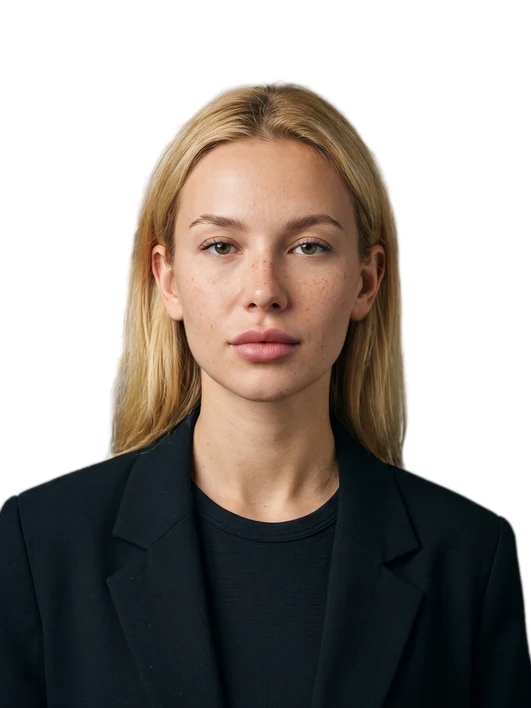
Sample shot. The screenshot shows Pikaj's real interface.
What it does
- Automatic crop, your fine-tuning. Drag the head-top, chin and eye-line guides; fix the details with the Move and Edge cleanup tools.
- Replace the background. A solid color, a gradient or your own image. If the edge around the person isn't clean, fix it with the Erase and Restore brushes.
- Retouching starts off. Turn it on if you want; for official biometric documents, Pikaj warns you.
- Save in bulk. Save all processes every photo in the list.
- Photos stay on your computer. Pikaj doesn't store your images on a server or share them with anyone.
Check the result before you use it or hand it to a customer. Official biometric documents may not accept a replaced background or retouching. Face detection needs macOS 14 or later on Macs with Apple silicon, and macOS 13.4 or later on Intel Macs; on older systems this feature is off and the app tells you why. The Linux version (1.0.15) doesn't include this tool.
How to make passport photosPassport photo size by countryBiometric photo requirementsPassport photo print layout
Open it on your computer
Pikaj runs on Windows and Mac computers; it doesn't open on phones or tablets. Send this page to your computer and download the app there.
Or just type this into your computer's browser: pikaj.app/en/passport-photo
These buttons only copy the page address or open your phone's own share sheet. We don't ask for your email address or any other information.
Try it first
Pikaj installs on your computer. Try it free for 15 days; no credit card needed.
The Mac app (1.0.31) opens in English: pick the language on the sign-in screen. The Microsoft Store version gets the English interface with its next update.