What is Pikaj's album design tool?
It is a desktop workspace where you build a photo album at the size that goes to print. It opens the document at the album lab's size, lays the photos out on spreads, checks resolution against the print size and gives you the files the lab asks for. The same app also designs collages and Instagram carousels.
- Studios that design wedding and family albums. Photographers and designers who send albums to labs such as Cihan, Flaş and Mert: size, DPI, trim and the cover's language are already yours; Pikaj brings them ready-made.
- A fast first draft from hundreds of photos. Auto layout builds a starting layout for your target number of spreads. You then adjust the layout, the template and the crop.
- Photographers who'd rather not match print sizes by hand. The document opens at the lab's pixel size, and the file comes out at the size the lab's upload page expects.
Designing an album in five steps
The full walk-through is in How to design a photo album.
-
Set up the album
On Home, press Create album: choose the lab, the model and the size, type the number of spreads and add a cover if you want one.
-
Add the photos
Drag them onto the gallery strip or press Import. The photo files stay where they are; nothing is copied.
-
Auto layout
Give the target number of spreads; the photos are laid out by capture time, ratio and color harmony.
-
Fine-tune
Change layouts and templates, swap photos, adjust crop and color, add text.
-
Check and export
Read the pre-print check, then export JPG, PNG, WebP or PDF, or prepare the order package.
What it does
- Lab sizes are built in. Ready-made settings for Cihan, Flaş, Mert, Çizgi, Pusula, Truva; the resolution is set to the lab you choose. Cihan, Flaş, Pusula and Truva also have a model catalog: you pick the model and the size from a list, and the cover size comes with it where the lab publishes one. Two models of the same size can ask for different covers, so the cover is built from the catalog, not from a formula. These are Turkish album labs; for any other lab you enter your own size.
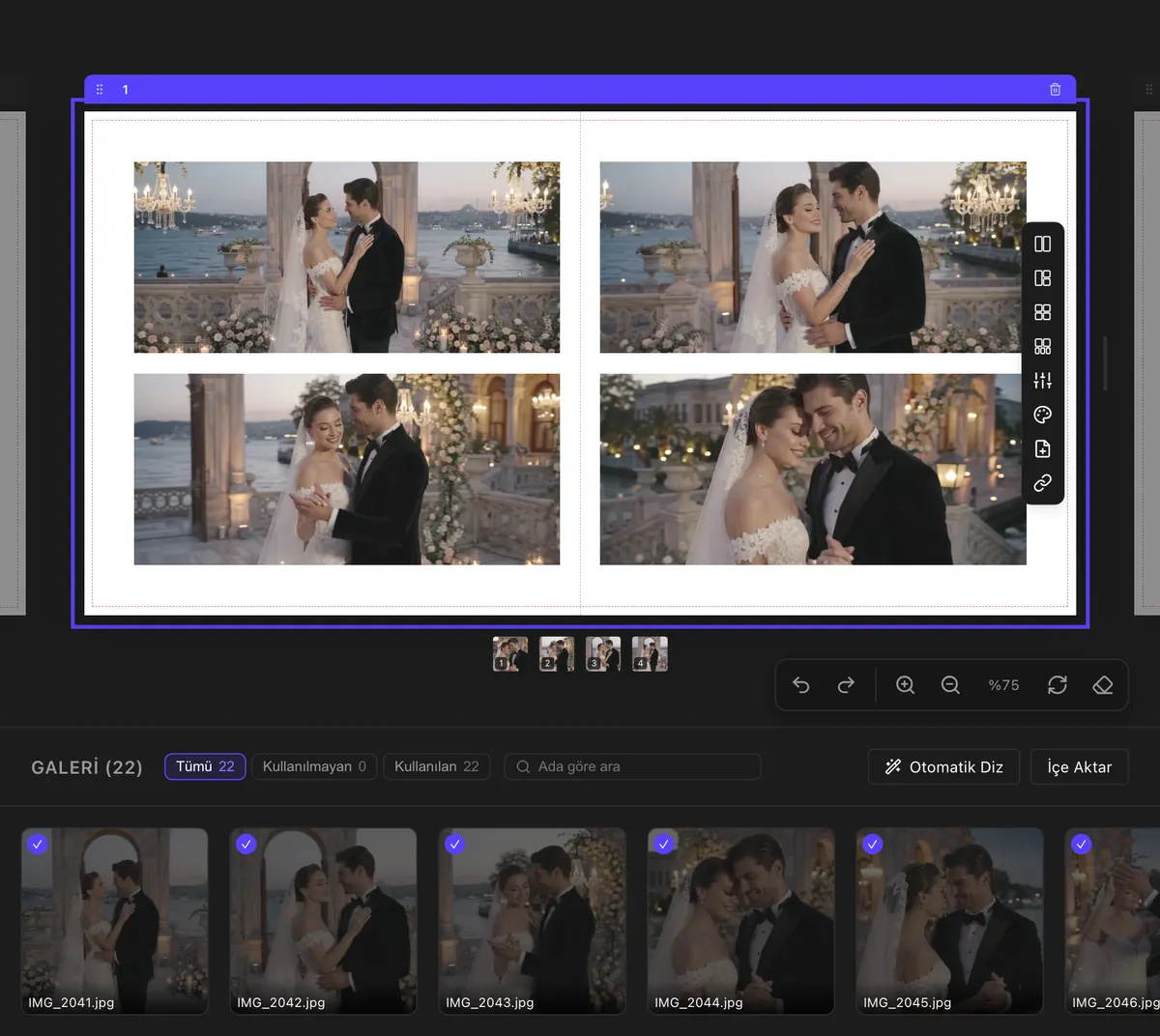
- The trim is inside the size. The size you pick or type is the final delivery size, and the file comes out at exactly that size. The dashed frame on the canvas shows the safe area.
- Your own size. Type the width and height, the number of spreads, the resolution and the trim, save the setting and call it up from Saved settings in the next album.
- Auto layout. It reads each photo's ratio, orientation, capture time and color signature: frames are sorted by time, color jumps between neighbours are reduced and each photo goes to the frame closest to its ratio. The target number of spreads is never exceeded: photos that don't fit stay in the gallery and Pikaj tells you how many. Undo with ⌘Z (Ctrl+Z on Windows).
- Layouts built from half spreads. A spread folds in the middle, so layouts are built as a left and a right half and ordered by the spread's real ratio; a frame that crosses the fold is marked on the layout card. Ready-made templates: Suitable, Single photo, Stack, Grid, Overlapping and With text.
- Swap photos, keep the frames. Drop a photo on another and the two frames stay while the photos trade places with their crops and color settings. Hold ⌥ (Alt on Windows) when you drop to swap the frames too. Basic adjustments cover exposure, contrast, saturation, temperature, tint, sepia and black & white; filter templates show a preview of your own photo.
- Text and cover. Ready-made text styles (title, subtitle, date, quote, names and more) in any font installed on your computer. Drag a photo from the gallery onto the cover or an empty spread.
- It doesn't enlarge, it warns. If a photo's resolution is too low for its frame, the frame says Low resolution or Borderline instead of upscaling the photo. The size is measured from the original file, not the lightweight copy on screen. The pre-print check at the top of the Export window scans the whole album and lists the spread, the file name and the effective DPI; it doesn't block the export. The decision is yours.
- Export. JPG, PNG, WebP or PDF, or an order package. Pikaj does not order from the lab for you: you send the print files or the package to your lab, and a button to the lab's website appears when the export finishes.
- Your photos and project stay on your computer. The project is saved as a .pikaj file on your disk, and Pikaj doesn't upload your photos to a server. The app asks for an internet connection when it opens to check the subscription.
The canvas draws JPG, PNG, WebP, GIF, BMP and AVIF. HEIC, TIFF and RAW files are reported by name; convert them with Pikaj's HEIC → JPG and Convert format tools before adding them.
The app itself
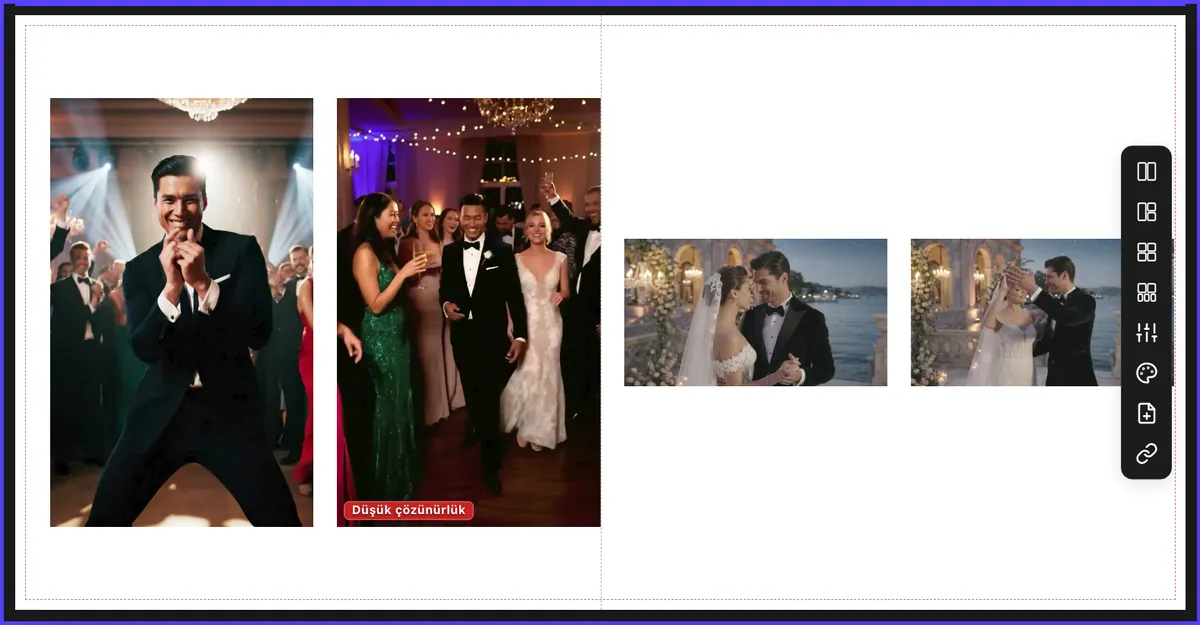
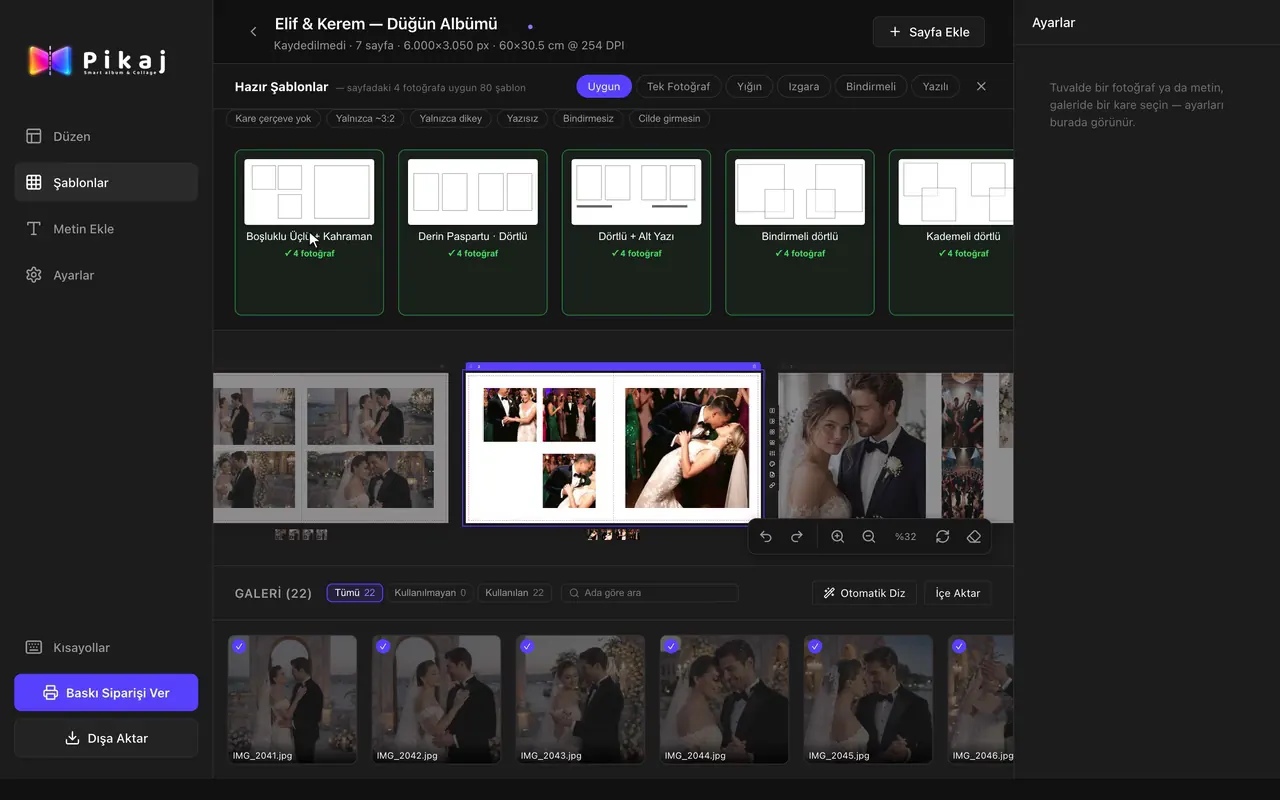
Sample photos. The screenshots show Pikaj's real interface in Turkish; the app also opens in English.
Requirements and price
- macOS (Apple silicon and Intel) and Windows. The Windows version is installed from the Microsoft Store.
- Price. Included in the Album + Collage subscription (€14.99 a month or €149 a year, VAT included), which covers album and collage design, and in the Complete Bundle. You can try it free for 15 days, no credit card needed.
Frequently asked questions
Is Pikaj's album design software free?
No, but you can try it free: the whole app, album design included, is open during Pikaj's 15-day free trial (no credit card needed). After that it is part of the Album + Collage subscription and the Complete Bundle; current prices are on the pricing page.
Which album labs' sizes are ready-made?
Cihan, Flaş, Mert, Çizgi, Pusula, Truva. Cihan, Flaş, Pusula and Truva also have a model catalog: you choose the model and the size from the list. Mert and Çizgi use a ready-made size list. These are Turkish album labs; for another lab, type your own size.
Can I enter my own album size?
Yes. Type the width, height, number of spreads, resolution and trim; save the setting and call it up from Saved settings in the next album.
Is the trim added to the size?
No. The size you enter is the final delivery size; the trim is inside it and the file comes out at exactly that size. The dashed frame on the canvas shows the safe area.
Does it enlarge low-resolution photos?
No. Pikaj doesn't enlarge a photo: the frame says Low resolution or Borderline, and the Export window lists the photos that fall short with their spread, file name and effective DPI. The decision is yours.
Can I order the album from the lab straight from Pikaj?
No. You export the print files or the order package and send them to your lab yourself; when the export finishes, a button to the lab's website appears.
Where are my photos and my project kept?
On your computer. The project is saved as a .pikaj file on your disk, and Pikaj does not upload your photos to a server. The app asks for an internet connection when it opens to verify the subscription.
Which computers does album design run on?
macOS (Apple silicon and Intel) and Windows. The Windows version is installed from the Microsoft Store.
Can I put HEIC or RAW photos in an album?
The canvas draws JPG, PNG, WebP, GIF, BMP and AVIF. HEIC, TIFF and RAW files are reported by name; you can convert and add them with Pikaj's HEIC → JPG and Convert format tools.
Is collage design in the same subscription?
Yes. The Album + Collage subscription covers album and collage design together, and the Complete Bundle includes both. See Collage and carousel maker.
Set up your first album today
Pikaj installs on your computer. Try it free for 15 days; no credit card needed.
The Mac app (1.0.31) opens in English: pick the language on the sign-in screen. The Microsoft Store version gets the English interface with its next Store update.
For Windows and Mac.
Pricing and subscription termsCollage and carousel makerAll Pikaj products