Step by step
-
Add photos
Drag photos onto the gallery strip, or press Import. You set up the album from Home with Create album: that is where you choose the manufacturer and the size.
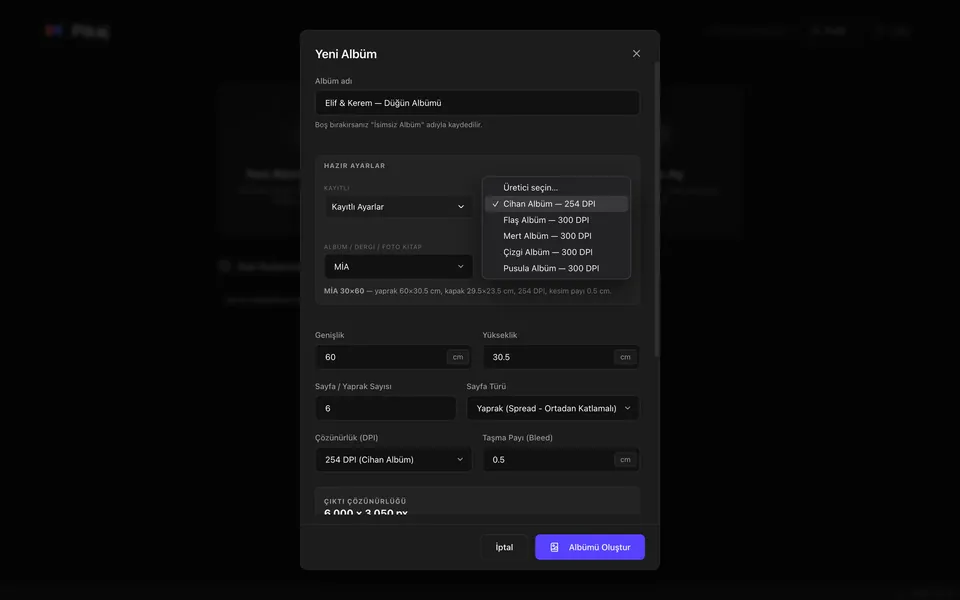
Create album: the album maker and size are chosen here. -
Spread
The spread is drawn at its real print size. Drag a photo from the gallery onto the spread and move it around; ⌘Z (Ctrl+Z on Windows) undoes what you did. Right-click a photo to open it in Photoshop or Lightroom; the version you save in Photoshop comes back onto the spread.
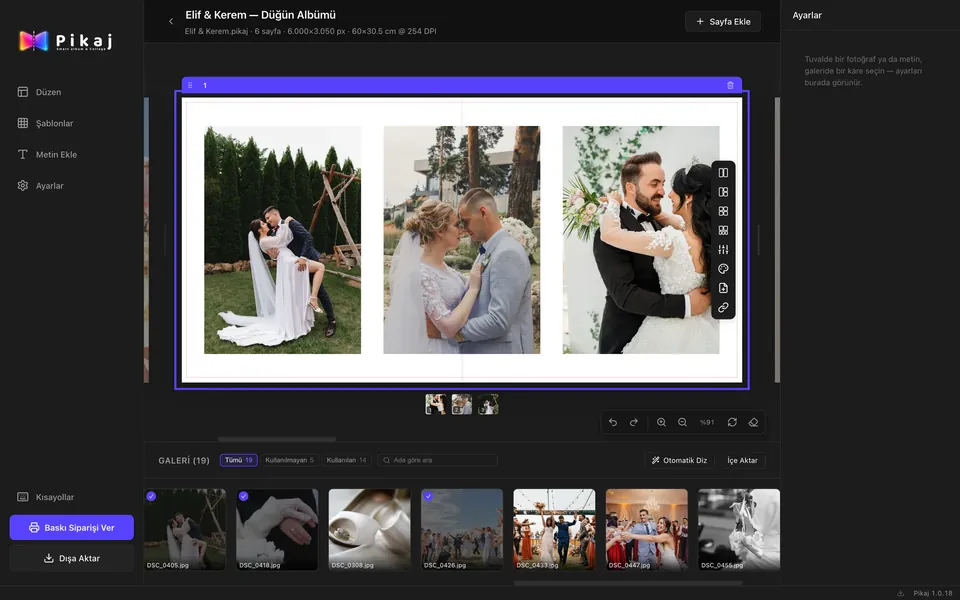
The spread at true print size, with the gallery strip below. -
Auto layout
Press Auto layout and give the target number of spreads: the photos are laid out on the spreads by capture time, orientation and color. Photos that don't fit stay in the gallery.
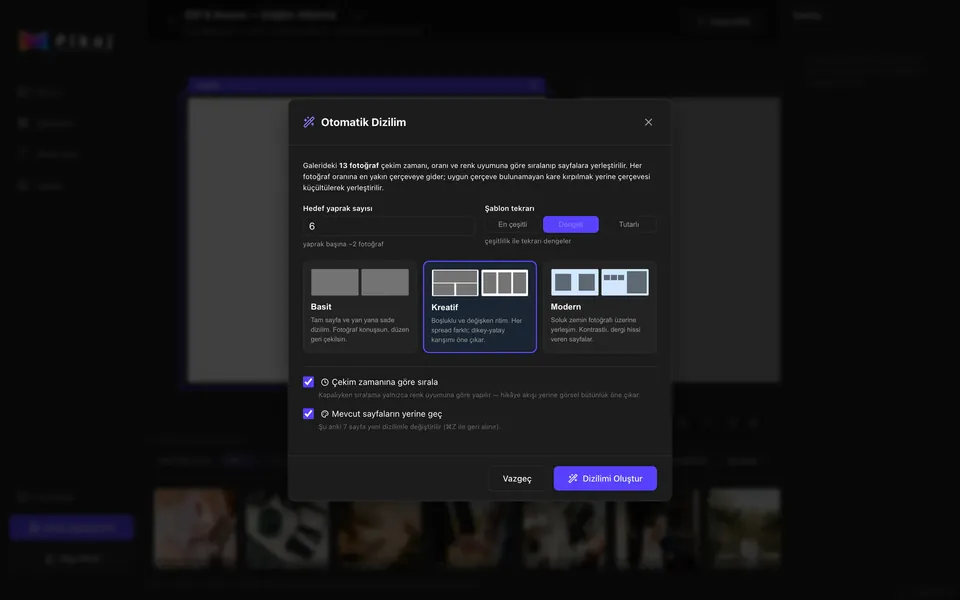
Auto Layout: target number of spreads and layout style. -
Layout, templates and text
Apply ready-made layouts and templates from the left menu, and add text. When you select a photo, you adjust its crop and filter in the panel on the right.
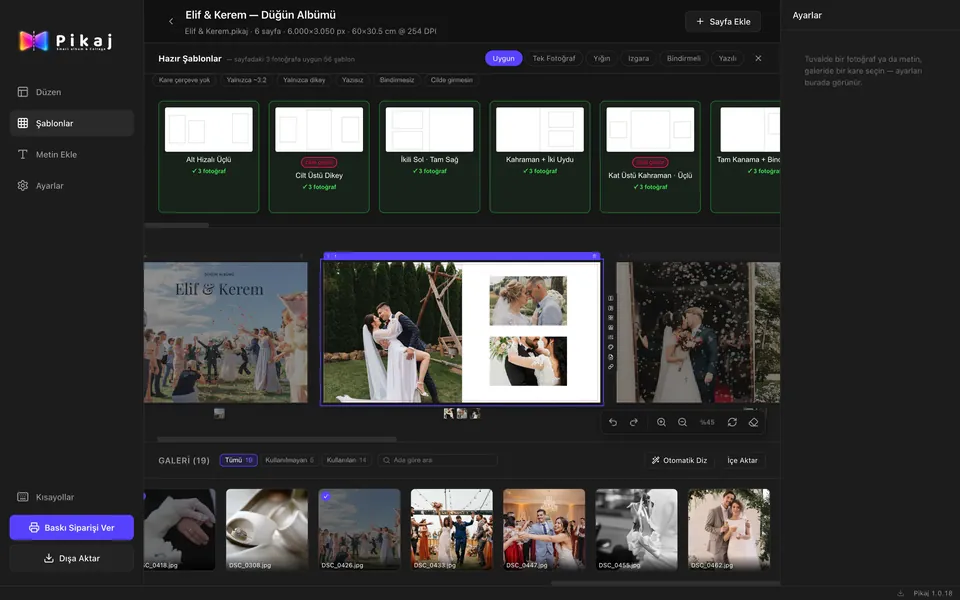
The Templates panel: ready-made designs that fit the spread. -
Check and send
If the resolution is not enough, Pikaj does not upscale the photo; it warns you. Use Export to get a PDF or images; use Order package to prepare the ZIP you send to your lab.
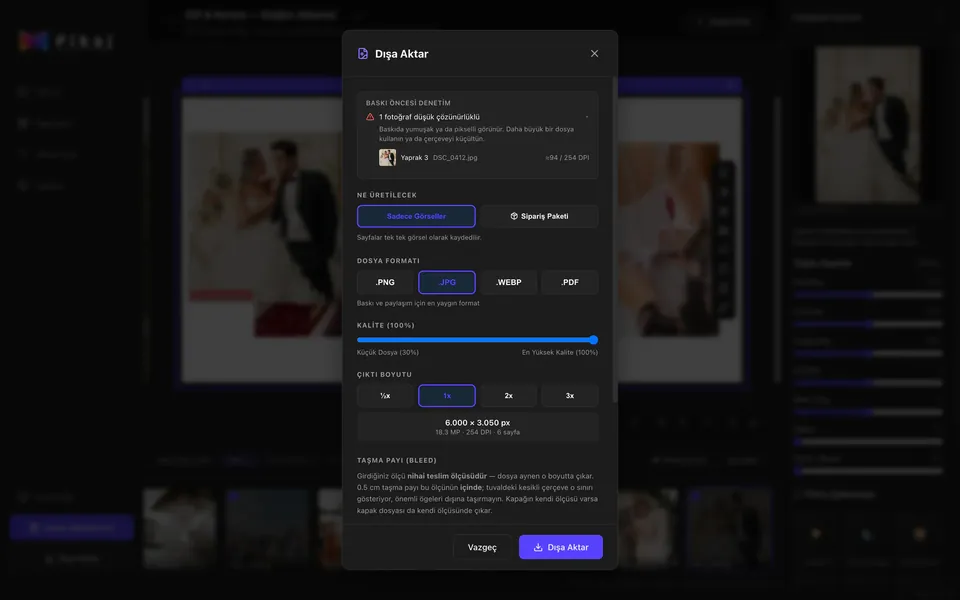
Export: the pre-print check and the order package.
The screenshots are taken from Pikaj's real interface and show the Turkish interface. The photos are Pexels stock photos.
Related guides
- Album design softwareProduct page: lab sizes, auto layout and the resolution check.Product page
- How to make ID and passport photos automaticallyAdd a photo; the face is found, the photo is cropped for the document, background and lighting are corrected and the print sheet is prepared.6 steps
- How to batch edit photosEvery frame of a shoot is analyzed on its own; problem frames are found and corrected at the level you choose.8 steps
- How to make a collage and a carouselMake single-page collages and carousels in social media sizes.4 steps
Download Pikaj
Pikaj is a desktop program; the versions are on the download page. Try it free for 15 days; no card details are required.