Step by step
-
Add photos
You set up the collage from Home with Create collage: that is where you choose a ready-made size (Instagram post, portrait, story, carousel…) or Custom size. Drop your photos onto the gallery strip.
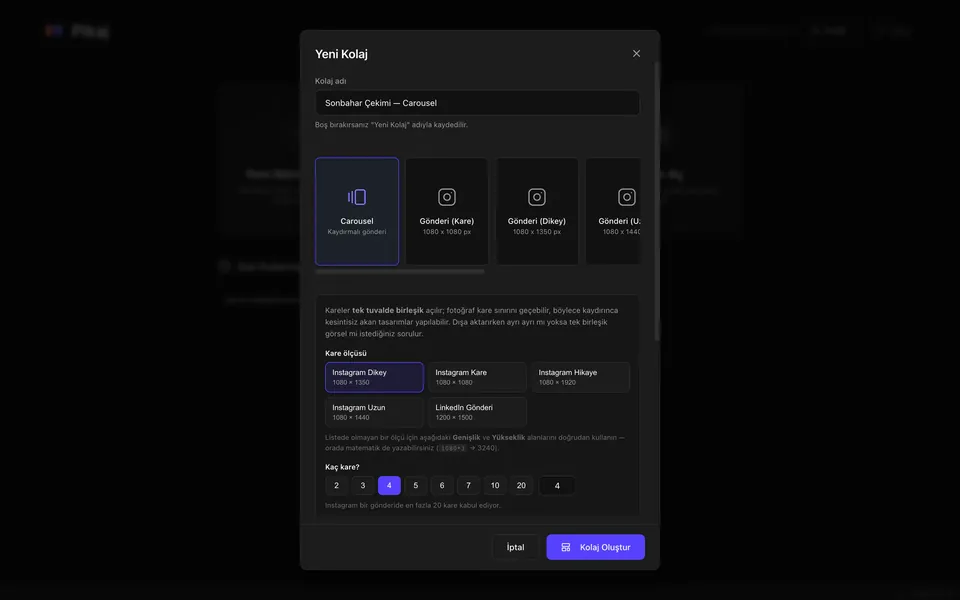
Create collage: Carousel, frame size and number of frames. -
Canvas
The collage is a single page. Zoom with the wheel; drag a photo to change its position and size.
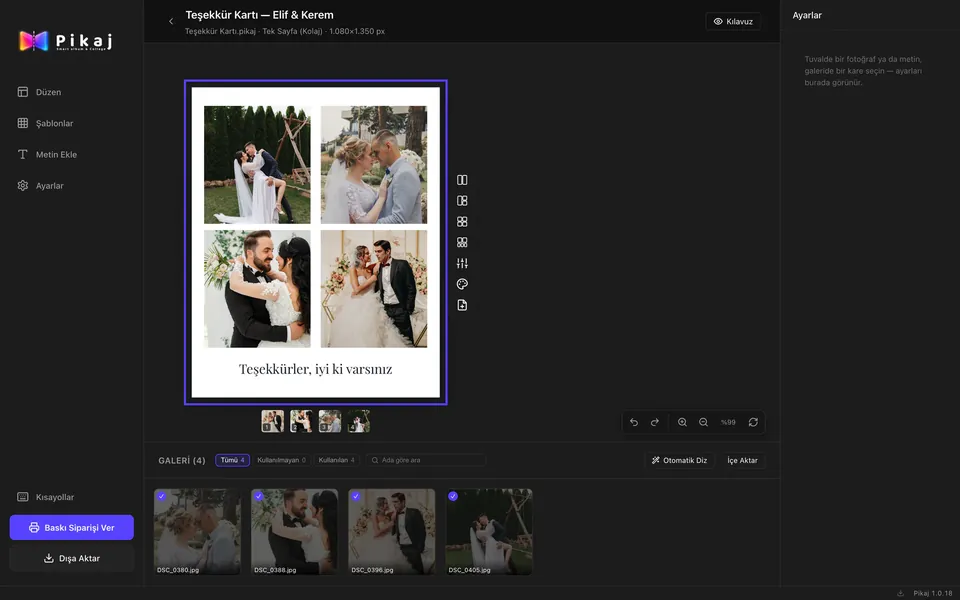
A collage is a single page. -
Layout and templates
Choose a grid or a ready-made design from Layout and Templates, and add text. Auto layout rebuilds the photos on the single page.
-
Export
Choose PNG, JPG or WEBP. The carousel is built on one canvas; on export it is split into separate frames or exported as one combined image.
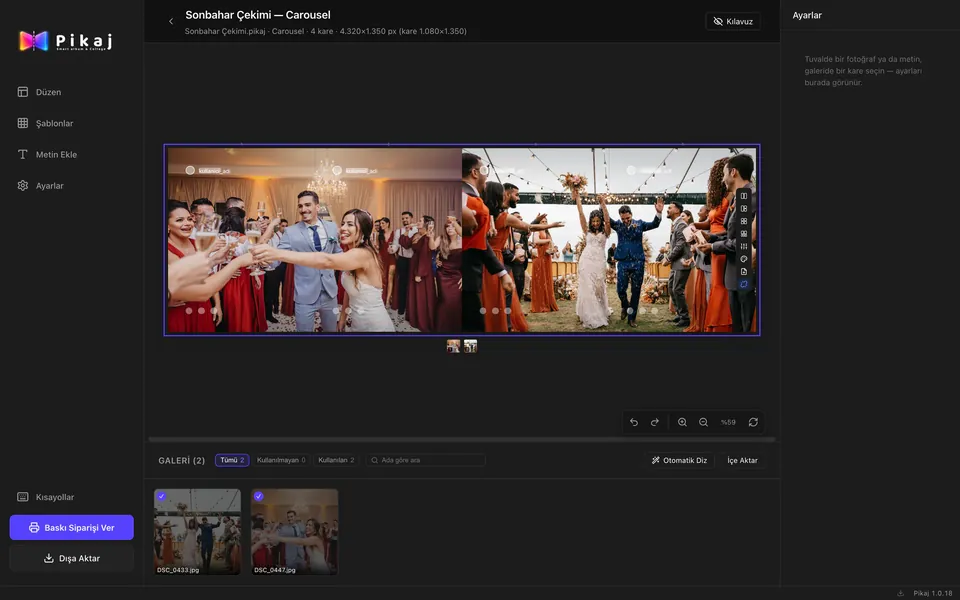
The carousel is built on one canvas and split into frames on export.
The screenshots are taken from Pikaj's real interface and show the Turkish interface. The photos are Pexels stock photos.
Related guides
- Collage and carousel makerProduct page: social media sizes and the carousel on one canvas.Product page
- How to make ID and passport photos automaticallyAdd a photo; the face is found, the photo is cropped for the document, background and lighting are corrected and the print sheet is prepared.6 steps
- How to batch edit photosEvery frame of a shoot is analyzed on its own; problem frames are found and corrected at the level you choose.8 steps
- How to design a photo albumSet up an album at the manufacturer's size; spreads are drawn at print size, and you are warned if the resolution is not enough.5 steps
Download Pikaj
Pikaj is a desktop program; the versions are on the download page. Try it free for 15 days; no card details are required.